Software Basics

1. Login to Portal

2. Add New Website

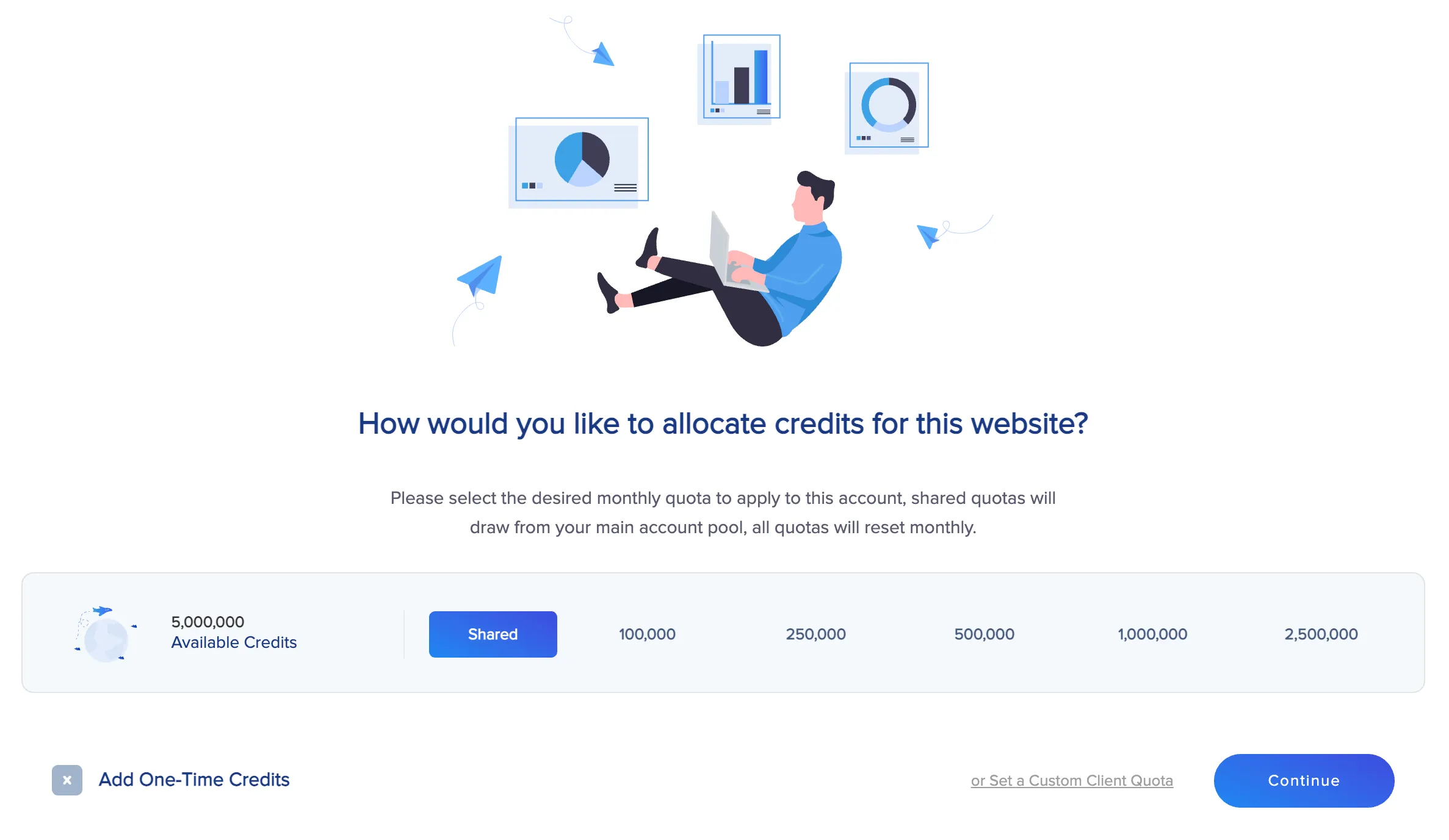
3. Select Quota

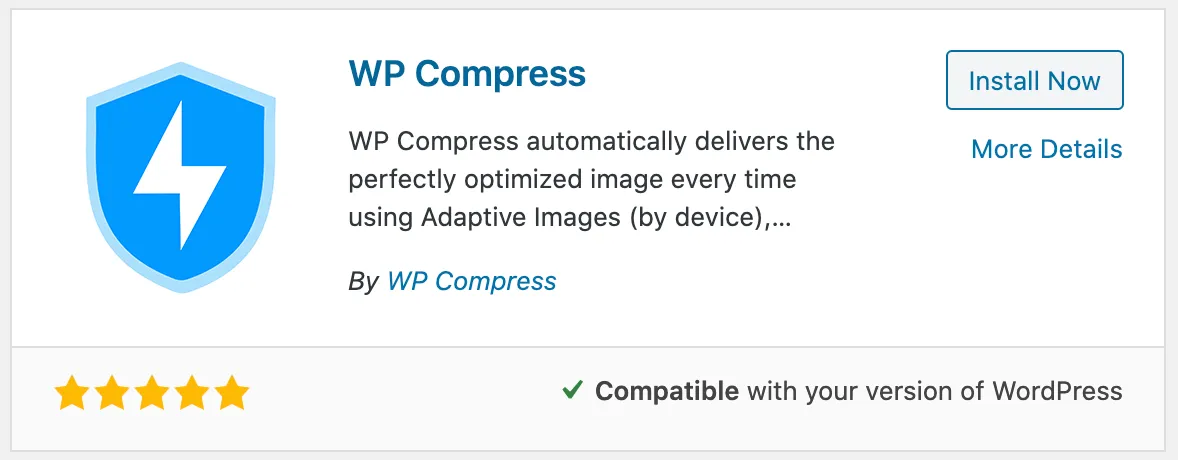
4. Install Plugin

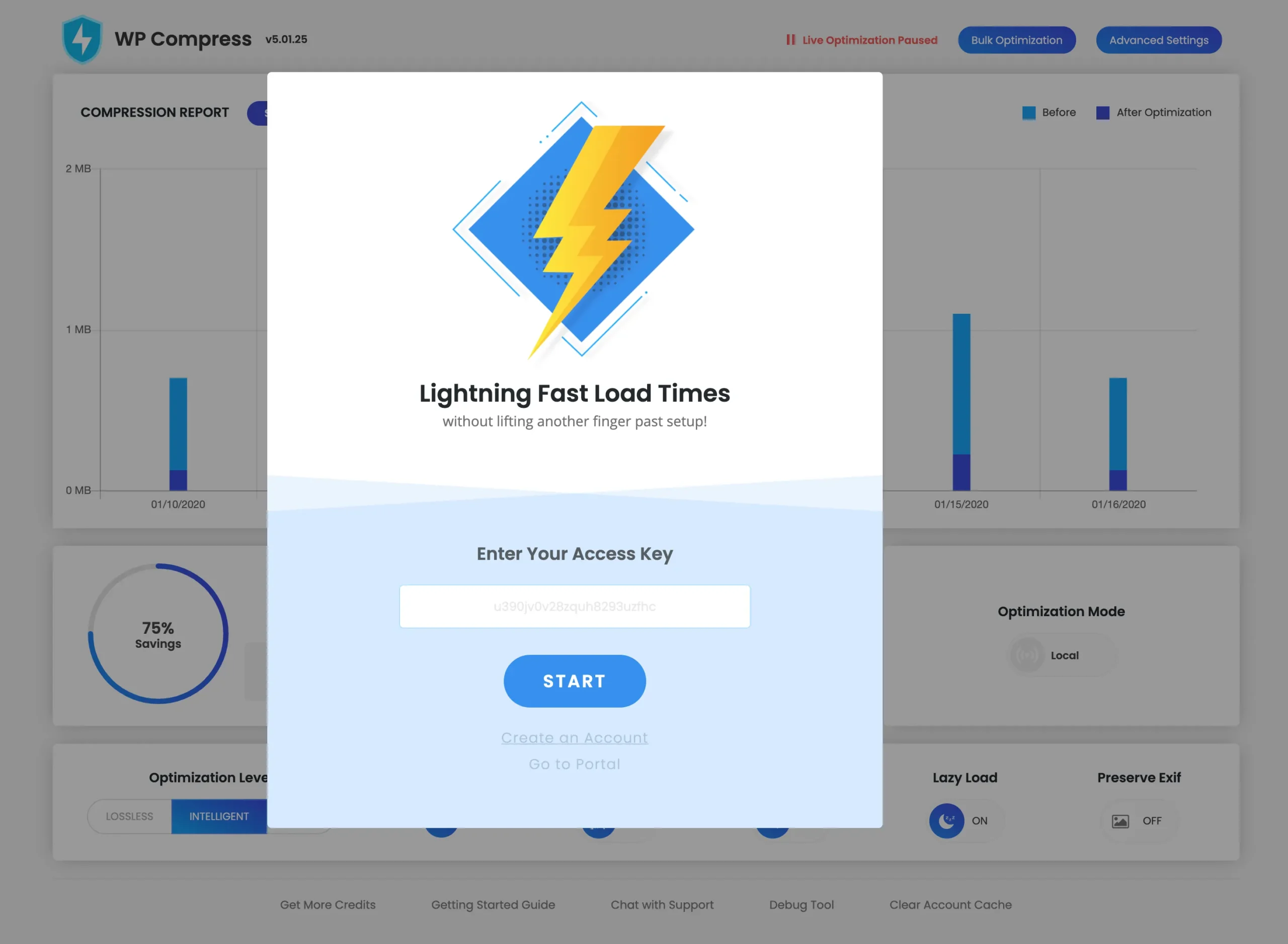
5. Enter Access Key

6. Select Your Mode

7. You're All Set!

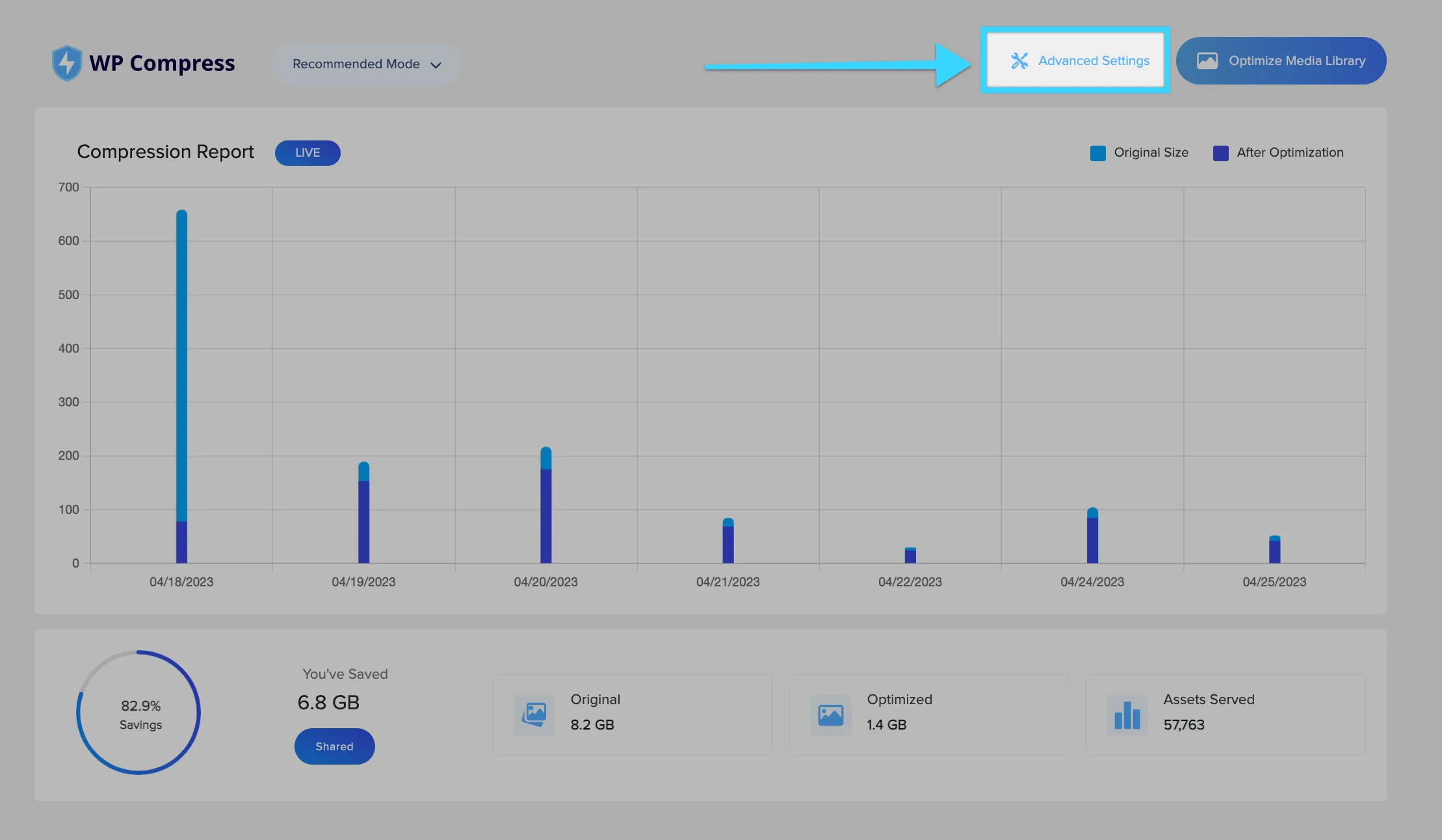
Advanced Settings

Knowledge Base

The Basics

The software is comprised of two parts centralized management portal and a WordPress plugin that you can quickly install on the sites you’d like to optimize!

Login to Portal
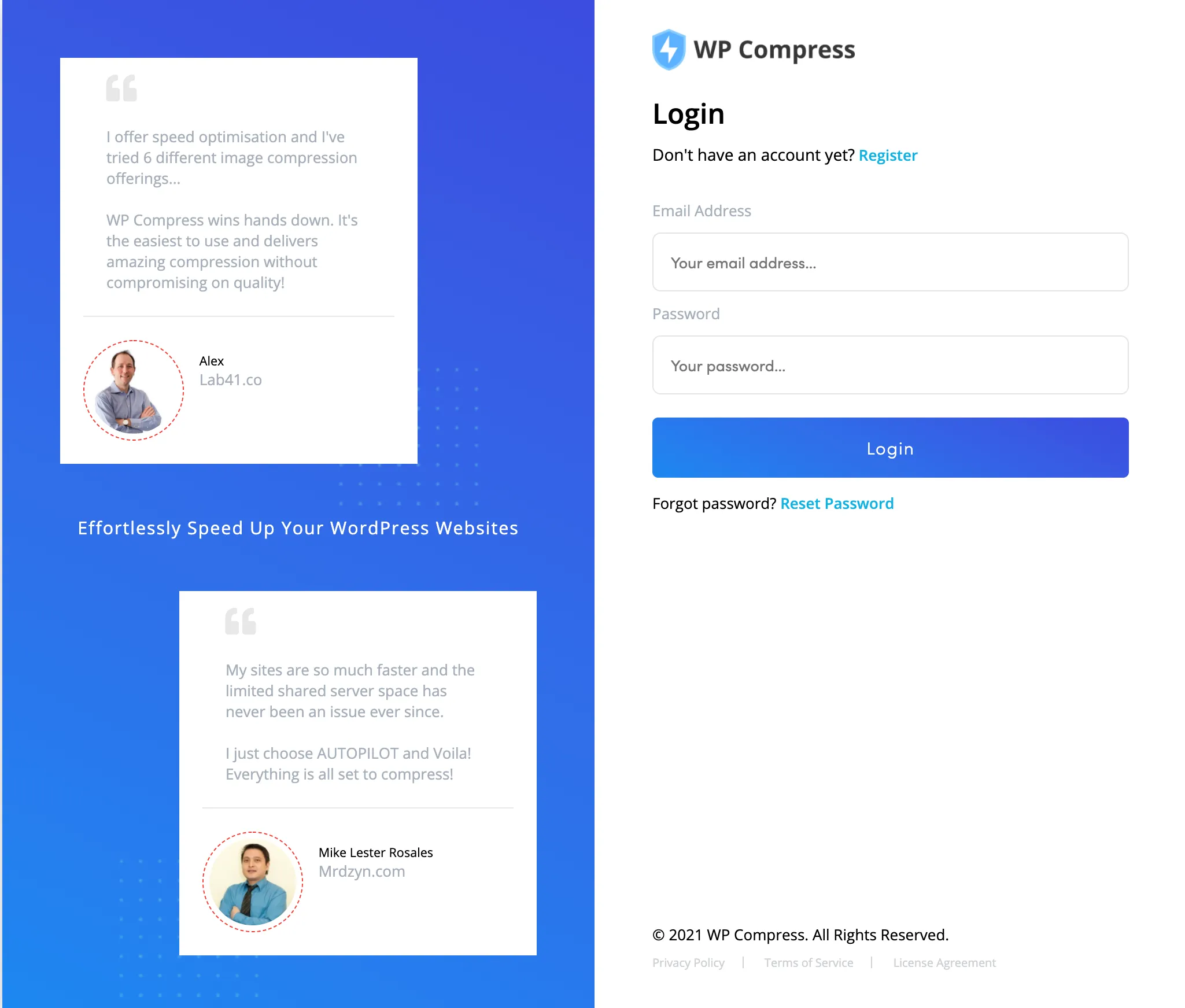
The first place to start is by logging in to the management portal.

Add New Website

In the top right of the portal, click ‘Add New Website’ to start the walkthrough.

Select Your Quota

We recommend a shared quota for a personal or trusted website, or you may set a monthly quota for a client’s website based on your care plans.

Install the Plugin

Go to your WordPress Admin Panel and install the plugin, either download the latest version or search for WP Compress in the Add New Plugin section.

Enter Your Access Key

Once installed, click get the bar that says Get Started and paste your access key that was created in the management portal.

Select Your Mode

Select your optimization mode, feel free to try Aggressive mode and CDN enabled for quick and easy performance!

Congrats, You're All Set!

You’re all set up with real-time optimization, now you’re an expert and should be able to set up your next website in just about 60 seconds!

Advanced Configurations

While not required, you may experiment with aggressive mode which includes additional optimizations, or configure other advanced settings.